HubSpot Record Creation | Desktop
How to:
Create a Contact
Every relationship at your bank starts with a contact record. A loan inquiry, a referral call, a new account opener — if it is not in HubSpot, it does not exist for your team. This video shows you how to add a contact from scratch, enter the fields that matter, and confirm the record is ready for activity. Start to finish in under two minutes.
What you'll learn
- Navigate to the Contacts section in HubSpot
- Open the Create Contact form and enter all required fields
- Understand which fields matter most and why
- Confirm the contact record opened correctly
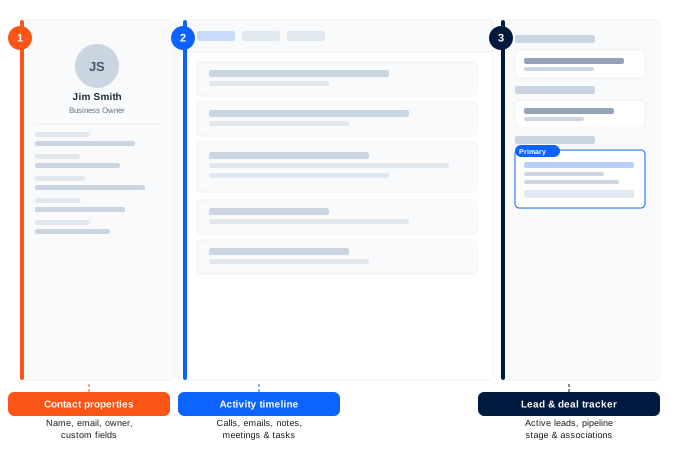
- Identify the three key sections of a new contact record
Why it matters for your bank
One incomplete record costs more than the two minutes it takes to fill it in.
When a contact record is missing a phone number, owner, or company name, follow-up falls to memory. A loan officer takes a call, writes a name on a notepad, and three days later no one knows who owns that relationship. That is a closed loan that did not happen.
Banks that maintain complete contact records reduce follow-up gaps and give every team member — whether it is the original officer or someone covering a vacation — the full picture the moment they open a record.
Step-by-step guide
Adding a new contact — 5 steps
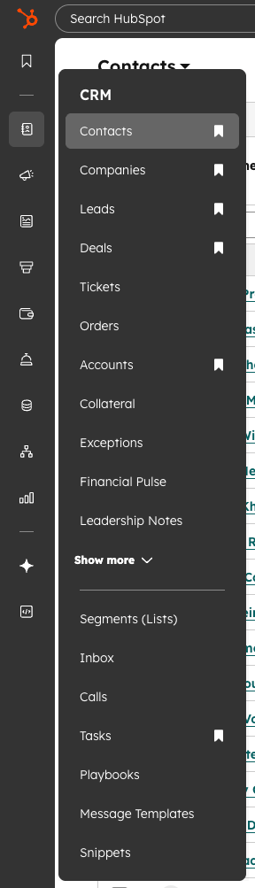
Go to Contacts
In the top navigation bar, click Contacts, then click Contacts again in the dropdown. This is your master contact list — every person your bank has a relationship with lives here.
Nav → Contacts → ContactsClick Create contact
In the upper right corner, click the orange Create contact button. A panel slides open on the right side of your screen.
Fill in the required fields
Enter the following fields. All six are required at your bank — do not skip any.
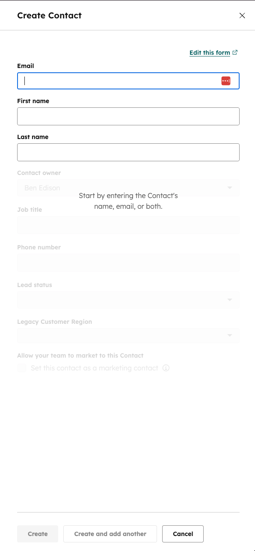
| Field | What to enter | Why it matters |
|---|---|---|
| First & Last Name | Client's full name | Required. Used in all activity logs and communications. |
| Work or primary email | Prevents duplicate records. Used for email logging. | |
| Phone | Direct or mobile number | Enables call logging directly from the record. |
| Job Title | Their role at the business | Identifies contact type — borrower, guarantor, referral. |
| Company Name | Their employer or business | Links to the company record automatically. |
| Contact Owner | Assigned relationship manager | Determines who owns follow-up. Required for reporting. |
Click Create contact
Click the Create contact button at the bottom of the panel. HubSpot opens the full contact record automatically.
Confirm the record opened correctly
Verify that three sections are visible: properties on the left, the activity timeline in the center, and the Deals section on the right. The record is live.
Common questions
Answers from the HubSpot Knowledge Base
What if the contact already exists in HubSpot?
HubSpot checks for duplicate email addresses when you create a contact. If a match is found, you will see a warning before the record is created. Review the existing record before creating a new one — duplicates create reporting errors and confuse your team.
HubSpot Knowledge Base — Manage duplicate contacts →Do I need to fill in every field?
Only First Name or Email is technically required by HubSpot. However, your bank requires Name, Email, Phone, and Contact Owner at minimum. Incomplete records cannot be reported on or properly routed to the right team member.
HubSpot Knowledge Base — Create contacts →Can I add custom fields like loan type or branch location?
Yes. Custom properties are managed by your HubSpot admin. If you need a field that is not there, contact your portal owner. Do not put custom information in the Notes field — it cannot be reported on.
HubSpot Knowledge Base — Create and edit properties →
Create a Company
What you'll learn
- Navigate to the Companies section in HubSpot
- Open the Create Company form and enter all required fields
- Understand which fields matter most for a bank relationship
- Associate a contact to the company record
- Confirm the company record is live and ready for activity
Why it matters for your bank
A business relationship without a company record is a relationship your team can't see.
Most banks track individual contacts well. What gets missed is the business behind the person. When a grain cooperative calls about a line of credit, everyone on your team needs to see the business name, industry, revenue range, and who owns the relationship — before the first call is returned.
A company record connects every contact, deal, and activity related to that business into one place. It is how your team stops working in silos and starts working the relationship.
Step-by-step guide
Adding a new company record — 5 steps
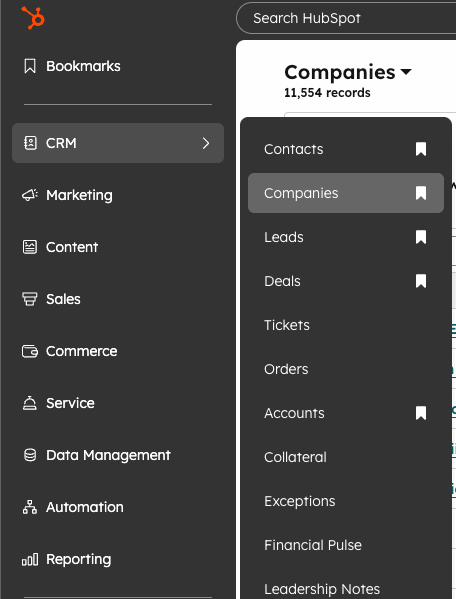
Go to Companies
In the top navigation bar, click Contacts, then click Companies in the dropdown. This is your master list of every business your bank has a relationship with.
Nav → Contacts → CompaniesClick Create company
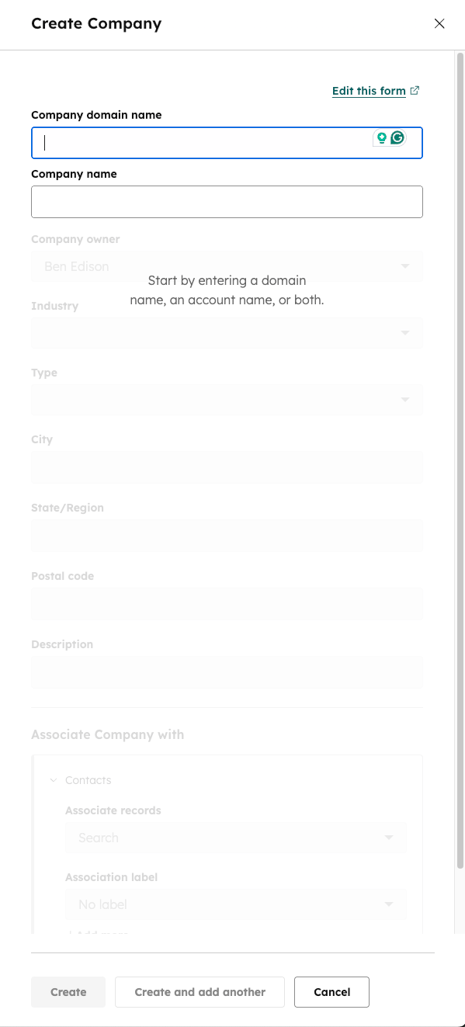
In the upper right corner, click the orange Create company button. A panel slides open on the right side of your screen.
Fill in the required fields
Enter the following fields. All are required at your bank — do not skip any.
| Field | What to enter | Why it matters |
|---|---|---|
| Company Name | Legal business name | Required. Used in all deal records, reports, and activity logs. |
| Industry | Select from dropdown | Enables portfolio segmentation and industry-level reporting. |
| City / State | Business location | Used for branch routing and geographic reporting. |
| Annual Revenue | Estimated or known revenue | Helps qualify loan size and product fit before the first meeting. |
| Number of Employees | Headcount range or exact | Signals business size for payroll, benefits, and treasury products. |
| Company Owner | Assigned relationship manager | Determines who owns follow-up. Required for reporting. |
Click Create company
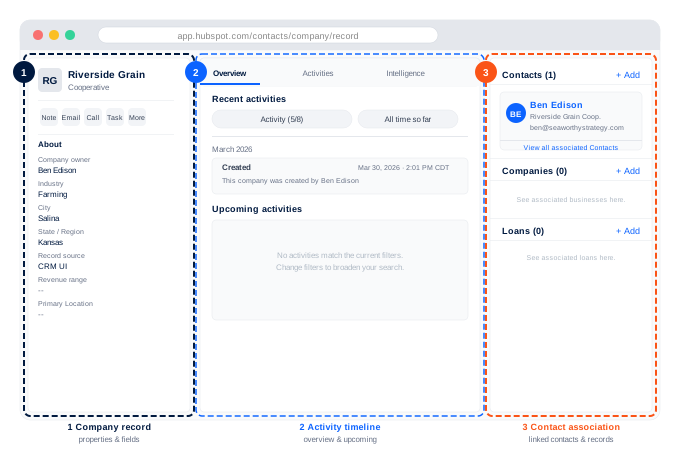
Click the Create company button at the bottom of the panel. HubSpot opens the full company record automatically.
Associate a contact to the company
In the Contacts section on the right side of the record, click Add and search for the person linked to this business. The company and contact are now connected — activity on either record will appear in both timelines.
Common questions
Answers from the HubSpot Knowledge Base
What is the difference between a contact and a company record?
A contact is a person. A company is the business they work for or own. You can have multiple contacts associated with one company — for example, an owner, a CFO, and an office manager at the same grain cooperative. The company record is what ties all those relationships together under one roof.
HubSpot Knowledge Base — Companies overview →Does HubSpot automatically link contacts to companies?
HubSpot can automatically associate contacts and companies that share the same email domain — for example, both having @riversidegrain.com addresses. For contacts with personal email addresses or custom domains, you will need to create the association manually using the step above.
HubSpot Knowledge Base — Auto-associate contacts to companies →Can I link a deal to a company record?
Yes. When you create a deal and enter the company name, HubSpot links the deal to that company record automatically. You can also add the association manually from inside the deal record. Keeping deals tied to companies is essential for commercial loan pipeline reporting.
HubSpot Knowledge Base — Associate deals with records →Create a Lead
What you'll learn
- Understand the difference between a contact and a lead in HubSpot
- Navigate to a contact record and open the Lead creation panel
- Enter the required lead fields and assign it to the right pipeline
- Confirm the lead is visible in the Lead stage tracker on the contact record
- Know when to create a lead vs. when to create a deal
Sales Hub Enterprise required. The Leads feature is only available to users with a Sales seat on Sales Hub Enterprise. If you do not see the Leads option on a contact record, contact your HubSpot admin to confirm your seat assignment.
Why it matters for your bank
A contact tells you who someone is. A lead tells you what they need and who owns the next step.
HubSpot Leads give your team a structured way to track early-stage opportunities before they are ready to become a deal. When a business owner mentions they are thinking about expanding their line of credit, that is a lead — not yet a deal, but too important to leave as a note on a contact record.
Creating a lead from a contact record keeps the opportunity connected to the person and the business, assigns clear ownership, and gives your team a pipeline view of every early-stage conversation happening across the bank.
Step-by-step guide
Creating a lead from a contact record — 5 steps
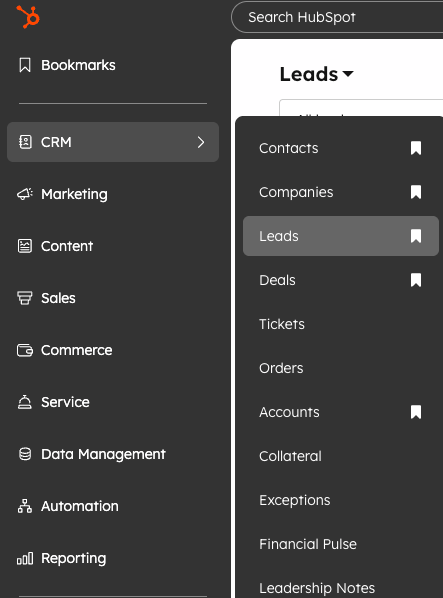
Open the contact record
Navigate to Contacts in the top nav and open the contact record for the person you want to create a lead for. In this example we are using John Smith at Smith Hardware & Supply.
Nav → Contacts → Contacts → John SmithFind the Lead stage tracker
On the right panel of the contact record, scroll down until you see the Lead stage tracker section. This is separate from the Deals section — leads represent earlier-stage opportunities.
Click + Add
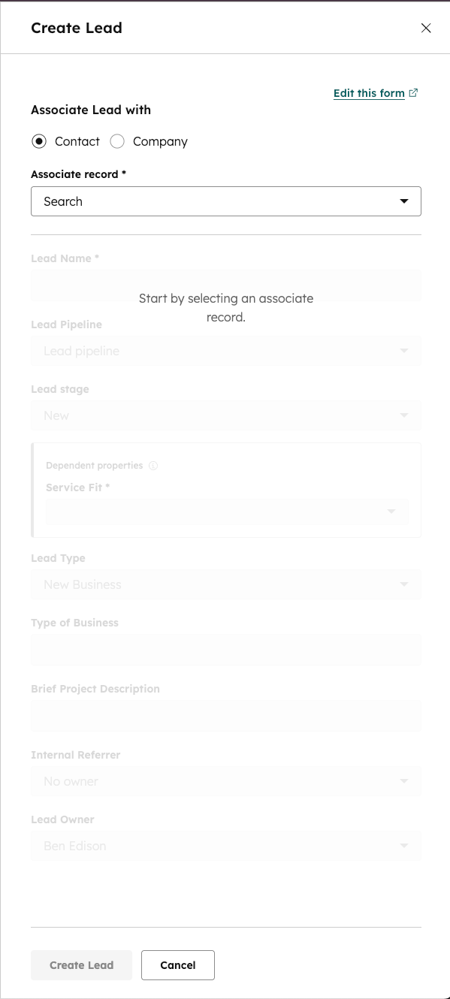
Click the + Add button in the Lead stage tracker section. The lead creation panel opens on the right side of your screen.
Fill in the lead fields
Enter the following fields. All are required at your bank.
| Field | What to enter | Why it matters |
|---|---|---|
| Lead Name | Contact name + opportunity type | Used in pipeline views and reports. Be specific — e.g. Smith Hardware — Commercial Loan Inquiry. |
| Lead Type | New Business or Existing Business | Segments leads by acquisition vs. retention for reporting. |
| Pipeline | Select the relevant lead pipeline | Routes the lead to the right team and stage view. |
| Lead Owner | Assigned relationship manager | Determines who owns follow-up. Required for pipeline reporting. |
Confirm the lead appears in the tracker
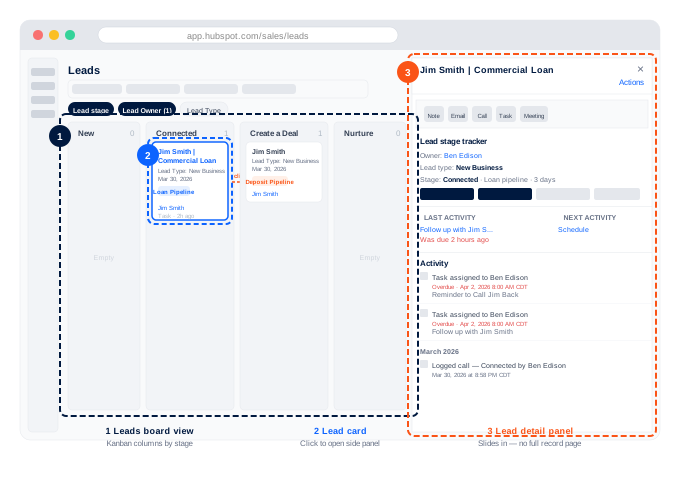
Back on the contact record, the new lead is now visible in the Lead stage tracker on the right panel. It shows the lead name, owner, type, and current stage. The lead is live and visible in your pipeline.
Common questions
Answers from the HubSpot Knowledge Base
What is the difference between a lead and a deal?
A lead is an early-stage opportunity — you know there is potential interest but no formal application or commitment has been made. A deal is created when the opportunity moves to an active stage in your pipeline, such as Application Received or Documents Collected. Most loan officers create a lead first, then convert it to a deal once the contact is ready to proceed.
HubSpot Knowledge Base — Get started with leads →Can I convert a lead into a deal?
Yes. When a lead is ready to move forward, you can convert it to a deal directly from the Lead stage tracker on the contact record. HubSpot will carry over the associated contact, company, and owner automatically — you just fill in the deal-specific fields like pipeline stage and amount.
HubSpot Knowledge Base — Convert a lead to a deal →Why can't I see the Lead stage tracker on my contact records?
The Leads feature requires a Sales seat on Sales Hub Enterprise. If the Lead stage tracker is not visible on your contact records, you either do not have a Sales seat assigned or your portal is not on the Enterprise tier. Contact your HubSpot admin to check your seat type and subscription level.
HubSpot Knowledge Base — Leads requirements →Create a Deal
What you'll learn
- Navigate to Deals and open the Create Deal form
- Enter all required fields including pipeline, stage, and deal amount
- Associate the deal to the right contact and company records
- Confirm the deal record opened correctly with all associations intact
- Understand how deals connect to your bank's loan pipeline reporting
Why it matters for your bank
If it is not in the pipeline, your manager cannot see it — and neither can anyone covering for you.
A deal record is how a loan opportunity becomes visible to your whole team. It connects the borrower, the business, the loan amount, and the stage — all in one place. Without a deal record, that $250,000 commercial loan inquiry exists only in someone's inbox or memory.
When deals are in the pipeline, your team can see what is moving, what is stalled, and what needs attention. Your manager can forecast. Your operations team can prepare. Creating the deal is the first step in making all of that possible.
Step-by-step guide
Creating a new deal — 5 steps
Go to Deals
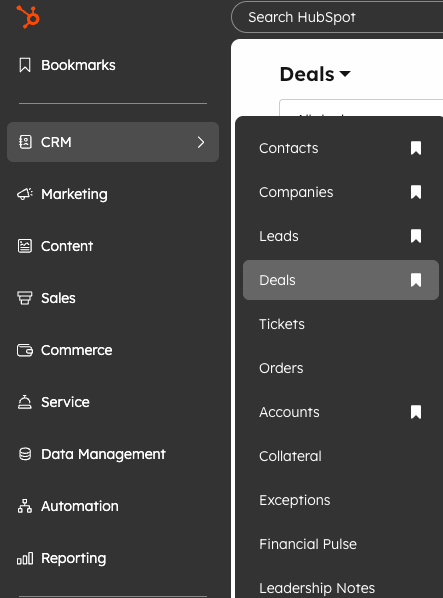
In the top navigation bar, click CRM, then click Deals in the dropdown. This opens your pipeline board — every active loan opportunity at the bank is tracked here.
Nav → CRM → DealsClick Create deal
In the upper right corner, click the orange Create deal button. A panel slides open on the right side of your screen.
Fill in the required fields
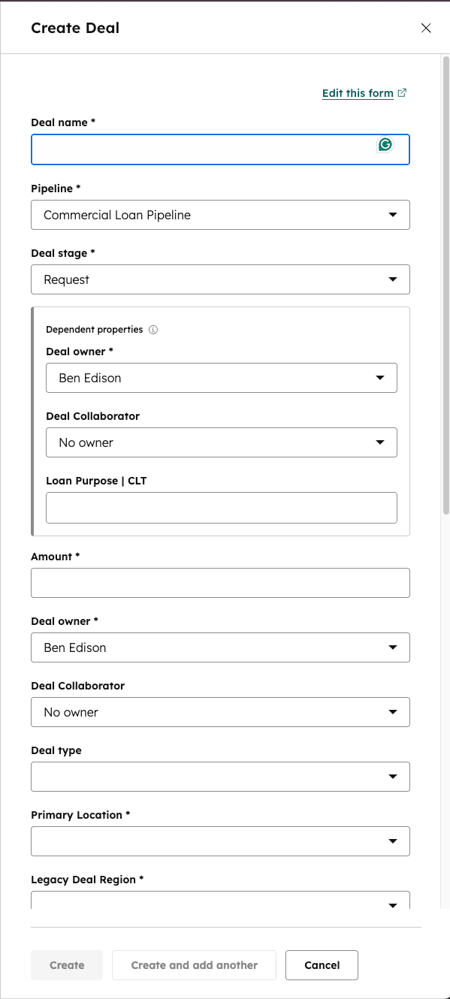
Enter the following fields. All are required at your bank — do not skip any.
| Field | What to enter | Why it matters |
|---|---|---|
| Deal Name | Borrower name + loan type | Used in all pipeline views and reports. Be specific — e.g. Smith Hardware — Commercial Loan. |
| Pipeline | Commercial Loan Pipeline | Routes the deal to the correct stage set and reporting view. |
| Deal Stage | Current stage in the process | Drives pipeline reporting and forecasting. Start at the accurate stage — not always Stage 1. |
| Amount | Requested or estimated loan amount | Used in weighted pipeline and revenue forecasting reports. |
| Close Date | Estimated closing date | Required for forecasting. Use best estimate — it can be updated as the deal progresses. |
| Deal Owner | Assigned relationship manager | Determines who owns the deal in the pipeline. Required for reporting and routing. |
Associate the contact and company
In the Associations section at the bottom of the form, search for and select the contact and company this deal belongs to. For this example: John Smith as the contact and Smith Hardware & Supply as the company. Click Create deal to save.
Confirm the deal record opened correctly
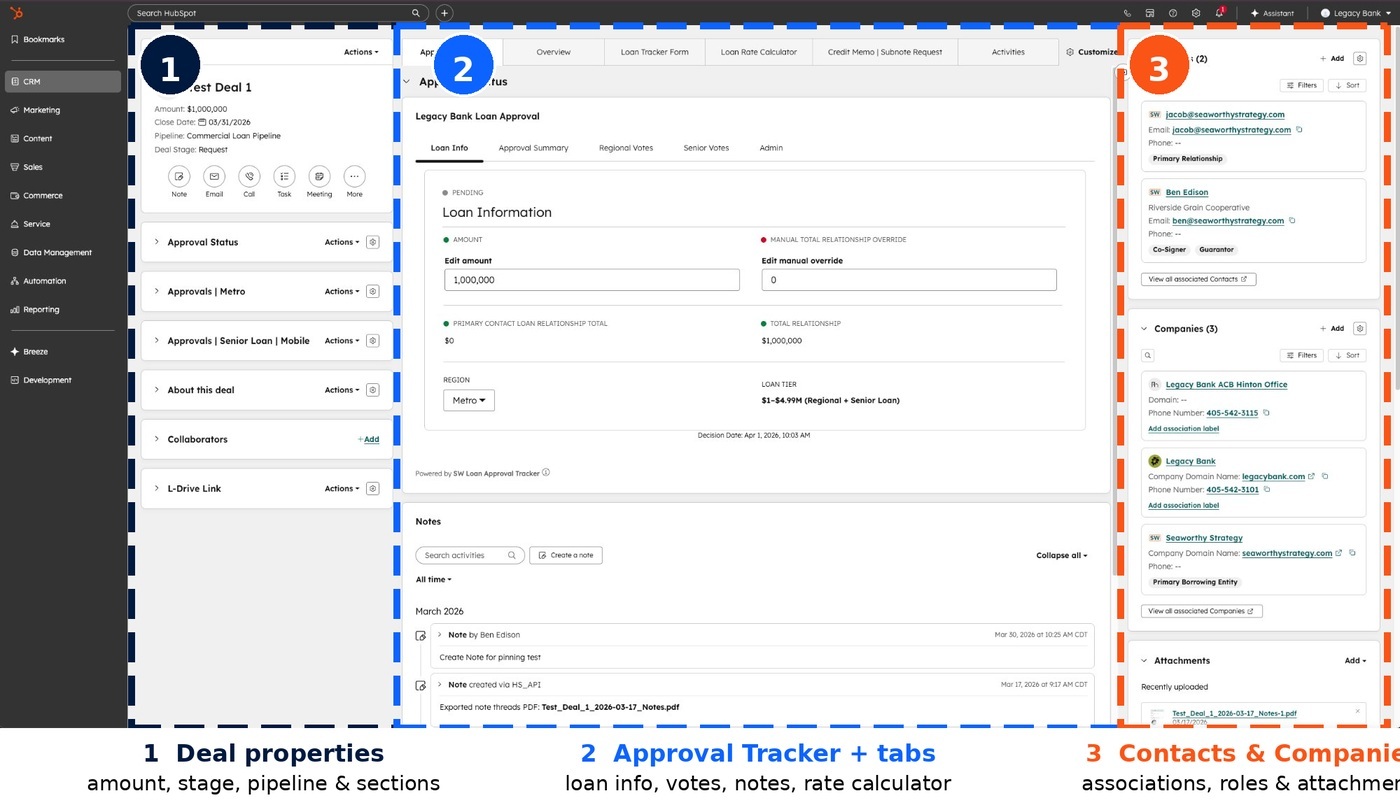
HubSpot opens the full deal record automatically. Verify the pipeline stage, amount, close date, owner, and associations to John Smith and Smith Hardware & Supply are all visible. The deal is now live in your Commercial Loan Pipeline.
Common questions
Answers from the HubSpot Knowledge Base
Which pipeline should I choose when creating a deal?
Your bank has three pipelines set up in HubSpot: Commercial Loan, Residential Mortgage, and New Deposit Account. Choose the pipeline that matches the type of loan or product the deal represents. If you are unsure which pipeline to use, contact your HubSpot admin — putting a deal in the wrong pipeline will exclude it from the correct reports.
HubSpot Knowledge Base — Set up and customize deal pipelines →What if I do not know the loan amount yet?
Enter your best estimate. The amount field is required for forecasting reports and cannot be left blank. You can update it at any time by opening the deal record and editing the Amount property. Using a placeholder like $0 will skew your pipeline numbers — a rough estimate is always better than zero.
HubSpot Knowledge Base — Create deals →Can I create a deal directly from a contact record instead of from the Deals page?
Yes. On any contact or company record, scroll to the Deals section in the right panel and click Add. The same deal creation form opens, but the contact or company association is pre-filled automatically. This is the fastest way to create a deal when you are already working inside a contact record.
HubSpot Knowledge Base — Associate deals with records →