Working Your Pipeline: Activities, Tasks, and the Deal Board
How to:
What you'll learn
- Navigate the Deal View and switch to Board View for a cleaner pipeline picture
- Filter deals by owner so you only see what is yours
- Read the three panes of a deal record — properties, tabs, and relationships
- Use the middle tabs: Approval Tracker, Loan Tracker, Rate Calculator, Credit Memo, and Activities
- Submit your approval vote and understand how the approval tiers work
Why it matters for your bank
The deal record is the single source of truth for every loan in your pipeline — knowing how to read it is the job.
The deal view is one of the more involved records in HubSpot. It is not just a form — it is the working file for a loan from first inquiry to final decision. Every approval status, every associated contact, every rate calculation, every vote lives here.
Loan officers who know how to move through a deal record confidently spend less time hunting for information and more time moving loans forward. This video walks you through everything — the pipeline view, the record layout, the approval tracker, and how to cast your vote.
Step-by-step guide
Navigating the Deal View — 5 steps

Open the Deal View and switch to Board View
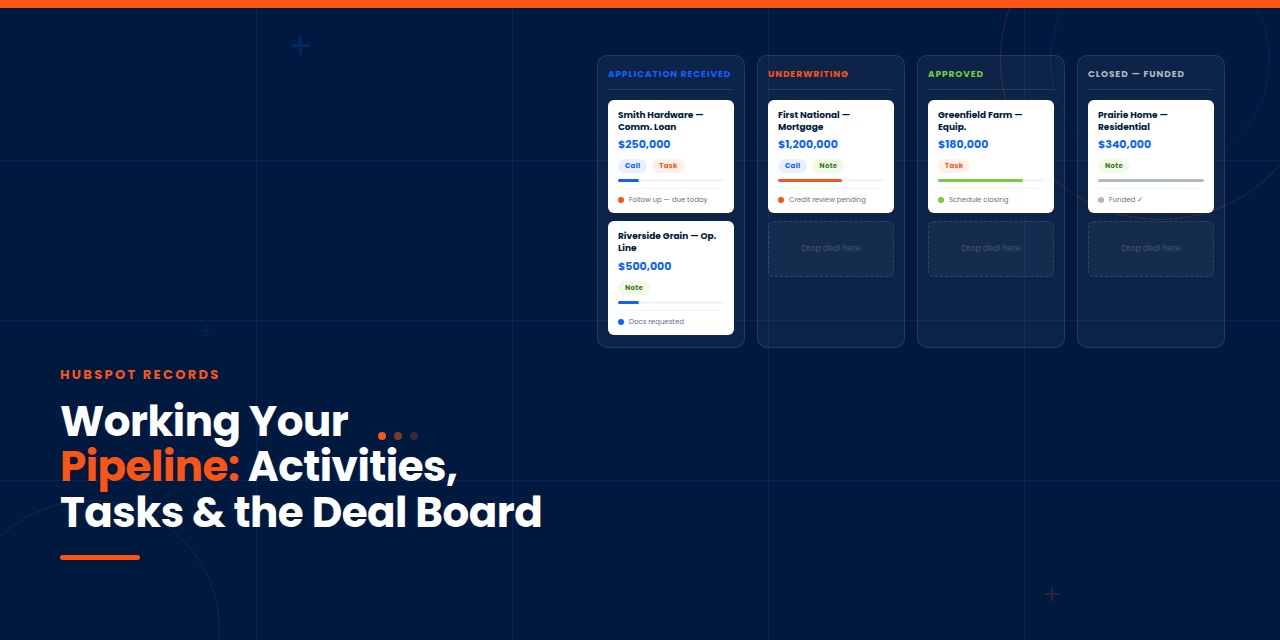
Navigate to CRM → Deals, or bookmark your pipeline directly. When it loads, you may see a flat list view — click the Board View icon in the upper right to switch. Board View shows your deals as cards in pipeline stage columns. You can drag deals between stages, see other team members' deals at a glance, and get a much cleaner read on where everything stands.
Nav → CRM → Deals → Board ViewFilter to your pipeline and your deals
Use the pipeline tabs at the top to confirm you are on the Commercial Loan pipeline. Then use the Deal Owner filter to show only your deals. This is your daily working view — everything assigned to you in the stages it currently lives in.
Open a deal record and orient to the three panes
Click any deal name to open the full record. Every deal record at Legacy Bank is organized into three zones. Learn them — you will use all three every time you work a loan.

| Pane | Location | What lives here |
|---|---|---|
| Left Pane | Properties panel | Deal details, approval statuses (metro, regional, senior), About This Deal fields. |
| Middle Pane | Tabs and tools | Approval Tracker, Loan Tracker Form, Rate Calculator, Credit Memo Request, Activities. |
| Right Pane | Relationship panel | Associated contacts, companies, exceptions, collateral — tagged by relationship type (primary, cosigner, guarantor). |
Work through the middle tabs
The middle pane is where most of the active loan work happens. Here is what each tab does:
| Tab | What it does |
|---|---|
| Approval Tracker | Shows general approval status, tier routing, and vote counts. Where you cast your decision. |
| Loan Tracker Form | The master tracking form for the loan — everything your team collects and monitors throughout the process. |
| Rate Calculator | Pulls live rates via API from federal sources. Set rates and push them directly into the deal settings. |
| Credit Memo Request | Subnote requests and credit memo submissions tied to this deal. |
| Activities | All activity on this deal — emails, calls, meetings, notes logged by any team member. |
Submit your approval vote
The Approval Tracker routes each loan into a tier based on the loan amount and total relationship value. Once routed, you will see which votes are needed — regional, senior, or both. When it is your turn to vote, open the Approval Tracker tab, scroll to your tier, select Approve, Reject, or Table, add your decision note, and click Save. Your vote is immediately visible to all other reviewers. Notes left here are separate from the Notes tab — they stay with the approval record.

Common questions
Answers from the HubSpot Knowledge Base
What is the difference between Board View and List View?
List View shows all your deals in a flat table — useful for sorting and exporting. Board View organizes deals as cards in pipeline stage columns and lets you drag them between stages. For daily pipeline work at Legacy Bank, Board View is the recommended default. You can switch between them at any time using the icons in the upper right of the Deals page.
HubSpot Knowledge Base — Use the deal board →How does the Approval Tracker determine which tier a loan goes to?
The Approval Tracker looks at two numbers: the loan amount and the total relationship value — what the borrower's complete relationship with Legacy Bank is worth. It adds these together and routes the loan into the appropriate approval tier. Below the threshold, you can self-approve. Above it, the system will require regional votes, senior votes, or both. The tier and what is needed will be displayed clearly in the tracker.
HubSpot Knowledge Base — Customize deal pipelines and stages →What is the primary relationship tag in the right pane and why does it matter?
When you associate contacts with a deal, each one gets a relationship tag — primary relationship, cosigner, or guarantor. The primary relationship tag is critical: it is the contact whose total relationship with Legacy Bank is used in the approval threshold calculation. Only one contact should be marked as the primary relationship. If you are unsure who to tag, use Edit Label Associations in the right pane to review and update.
HubSpot Knowledge Base — Associate deals with records →
Logging Activity
What you'll learn
- Understand the difference between logging on a contact, a lead, a deal, and a company
- Log a note, task, and meeting from a contact record
- Use the More menu to log calls, texts, and SMS
- Log activity on a lead record and understand how it rolls up to the contact
- Know where to look — the Overview panel and the Activities panel — to see everything that has happened
Why it matters for your bank
If it is not logged, it did not happen — and your team cannot act on what they cannot see.
Activity logging is where CRM discipline actually shows up in your daily work. Every call you had with Jim Smith, every meeting you held with a borrower, every follow-up task you set — those are only useful to your team if they are logged in HubSpot. Without them, the next person to open that record starts from zero.
The most important thing you can take away from this: just log. Start from the top left of any record and log what happened. Everything else — which object to log on, how activities roll up — comes with practice. But the habit of logging is what makes the whole system work.
Step-by-step guide
Logging activity in HubSpot — 5 steps

Open the record you want to log on
Navigate to the contact, lead, deal, or company record where the activity happened. In the upper left of every HubSpot record you will see the same set of icons: Note, Task, and More. This works the same way across all record types — contacts, companies, leads, and deals all share this pattern.
Top left of any record → Note / Task / MoreLog a note
Click Note and type what you want to record. Notes are visible to everyone on your team with access to the record. Use them for anything worth capturing — what was said in a conversation, a concern the borrower raised, context that would help anyone picking up this record later. Hit Save note when done.
Create a task
Click Task to set a to-do directly on the record. Name the task, set a reminder date and time, and assign it. You can assign tasks to yourself or to another team member — a loan specialist, a processor, anyone who needs to take the next step. Assigned tasks appear in that person's task queue.

| Field | What to enter |
|---|---|
| Task Name | What needs to happen — e.g. "Follow up with Jim Smith in 3 business days" |
| Reminder | Date and time to be reminded. Shows up in the task queue on that day. |
| Assign To | Yourself or another team member who owns the next action. |
Log a meeting or call using the More menu
Click More to see the full list of activity types. Select Log a meeting to record a meeting that already happened. Fill in attendees, outcome, duration, and your notes from the conversation. Before you close the window, toggle on Create a follow-up task to set the next step right now while it is still fresh.

| Activity Type | When to use it |
|---|---|
| Log a call | Any phone call — incoming or outgoing. Log outcome and duration. |
| Log a meeting | In-person or virtual meetings. Add attendees, outcome, and notes. |
| Log a note | Anything that does not fit a call or meeting — context, reminders, observations. |
| Send SMS / Email | Send a tracked text or email directly from the record. Logged automatically. |
Log on the right object — lead vs. contact
When you are actively working a lead — making calls, sending follow-ups, trying to qualify the opportunity — log your activity on the lead record, not the contact. Here is why it matters: because the lead is associated to the contact, HubSpot automatically rolls that activity up to the contact record too. You get the best of both — lead-specific activity is segmented and easy to review, and the contact record stays complete.
The same logic applies to deals and companies. Associate your records, and HubSpot handles the rest. The more associations you build, the more automatic your activity trail becomes.

Common questions
Answers from the HubSpot Knowledge Base
Where do I see all the activity that has been logged on a record?
Every HubSpot record has two places to review activity. The Overview tab in the middle pane shows a summary — recent meetings, logged calls, and comments at a glance. The Activities tab shows the full chronological log of everything that has happened on that record — every call, email, note, meeting, and task, with timestamps and who logged it.
HubSpot Knowledge Base — Log and track emails in CRM →If I log an activity on a lead, does it show up on the contact record too?
Yes — as long as the lead is associated to the contact. When you log a call, note, or meeting on a lead record, HubSpot is smart enough to recognize the association and roll that activity up to the contact record as well. This is exactly why associating your records matters — it keeps your activity trail complete without having to log twice. The same applies when logging on a deal that is associated to a contact or company.
HubSpot Knowledge Base — Get started with leads →Should I log on the contact or the company when I am working a business deal?
It depends on what the interaction was about. If you spoke with a specific person at the business, log it on their contact record. If the interaction was with the business broadly — a site visit, a company-level meeting — log it on the company record. If you have a deal open, logging on the deal keeps all loan-specific activity in one place. The key is to associate everything correctly so HubSpot can connect the dots automatically across records.
HubSpot Knowledge Base — Log activities on records →